Before you install Developer Studio, review these details.
Dependencies
| Component | Description |
|---|---|
| 9.2.0 | Minimum platform version required to use Developer Studio |
| 9.4.0 | Minimum Platform Version 9.4.0 is required to access full XML item configuration options, including loading and extracting XF Projects |
Considerations
| Installer Deployment | |
|---|---|
| Operating system | Windows |
| Type of install | Traditional installation. The Developer Studio application displays in the Start menu and Add or Remove programs. |
| End-user deployment | OneStream Solution Exchange |
| Requires local administrator | No |
| Version upgrade | Manual upgrade with installer file |
| Use multiple versions on the same machine | No |
|
Connect to different servers from single installed instance |
Yes |
Install Developer Studio
The Developer Studio installer is available on Solution Exchange. Complete the following steps to install Developer Studio:
NOTE: Use the installer to upgrade Developer Studio. The installer updates the existing client without removing data.
-
Double-click the Developer Studio installer file and then select the Next button.
-
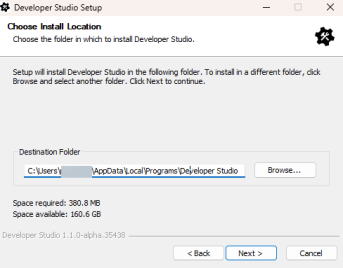
If necessary, change the folder path. Select the Next button.
-
The Add the OneStream CLI (ods) to my PATH checkbox is selected by default. This enables you to run ods commands from any terminal, script, or editor. To disable CLI integration, deselect the checkbox. To continue, select the Install button.
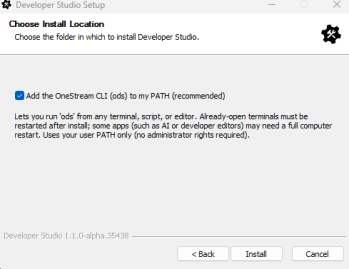
NOTE: Already-opened terminals must be restarted after Developer Studio is installed for CLI integration to function. Some applications, such as AI or developer editors, may require a full computer restart.
-
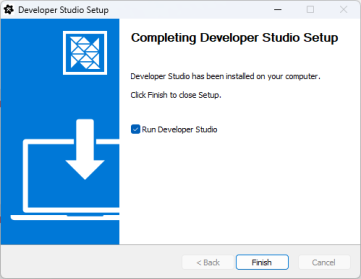
Select the Finish button to complete the installation.
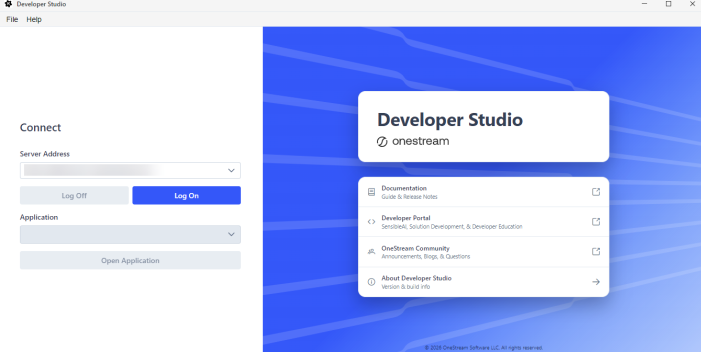
The Developer Studio launch page displays, enabling you to log in and access Developer Studio resources. See Connect
Custom Environment Configuration
IMPORTANT: This section only applies if you have a custom environment configured that you would like to make compatible with Developer Studio.
NOTE: OneStream Identity Server (OIS) must be installed and configured in your custom environment before completing this procedure.
When Developer Studio is installed and launched, a configuration file is created in your local AppData folder at the following path: C:\Users\<username>\.ods. To connect to custom OneStream installations, configuration changes are required to successfully complete an OIDC workflow with your local OIS setup. The configuration file provides the flexibility to define the authorityUrl for the server you are connecting to and enables you to disable SSL verification for self-signed certificates.
To set the authorityUrl for local login, open the configuration file and modify the authorityUrl value to match the host/port that is set up locally for the target OIS instance. You can specify multiple custom environments by adding each to the servers list.
{
  "defaultRepositoryRootFolder": "C:\\demoRepo",
  "lastSelectedRepositoryId": "7b903603-1d4d-410e-86e0-54f35f8000c6",
  "enableDarkMode": true,
  "showConfirmationDialogForPushAndPull": false,
  "language": "en",
  "referenceAssembliesUrl": "https://sgcomcdnponestream.blob.core.windows.net",
  "referenceAssemblyDownloadLocation": "C:\\Users\\{{username}}\\Downloads",
  "discoveryApiTimeoutSeconds": 30,
  "applicationsApiTimeoutSeconds": 30,
  "developerStudioApiTimeoutSeconds": 300,
  "businessRulesApiTimeoutSeconds": 300,
  "assembliesApiTimeoutSeconds": 300,
  "servers": {
    "{{custom_server_url}}": {
      "authorityUrl": "{{custom_ois_url}}",
      "disableSslVerification": true
    }
  }
}
